Use TimeTec TA’s Attendance Approval for Better Control of Your Workforce


Introduction

Exciting news for TimeTec TA’s System Admins! When it comes to working hour calculations and payroll matters, we understand how it pays to be extra careful. This may even mean that as a control measure, you regularly require all managers to recheck and acknowledge the attendance data you’re exporting from the system. 

If that’s the case for you, don’t miss out on our newly released Attendance Approval feature that will help automate your approval process. Even better, the approval function can be performed by Admins on both web and mobile platforms for added convenience.


Process

1) Enable this option in System Settings - Attendance Approval allows Admin to make approval on staff attendance.

2) Go to Attendance > Attendance Approval - Admin with the special Approval rights (provided in System Role) will be able to approve attendance; Approved attendance can be unapproved.

3) Admin can also choose to notify the user once they have approved/unapproved user’s attendance.  

4) Only approved attendance can be exported through the Export Attendance, Export Attendance to Payroll and Export Attendance Scheduler features.  

5) Once approved, the data is not allowed to be updated by edit attendance, download data from terminal, update user’s group roster, update schedule setting, generate attendance manually and etc. 

6) To update approved attendance, users must first proceed to unapprove the attendance.

7) Electronic Time Card shows Approved/ Pending status.

For more details of what’s available with this feature, please refer to the step-by-step guide below. There are 4 sections to this topic:

A) How to Enable/ Initial Setup
B) How to Approve (Web)
C) How to Approve (Mobile app)
D) Reports & Export Attendance Data after approval    

A) How to Enable/ Initial Setup

1. Login to Admin account and go to System Settings. Click Edit, tick to enable Attendance Approval and select the date to start the approval.


2. Once you enable this feature, you will be able to view Attendance Approval in the Menu (it’s hidden if option is not enabled).

cid:image002.png@01D3C51C.35DE17A0

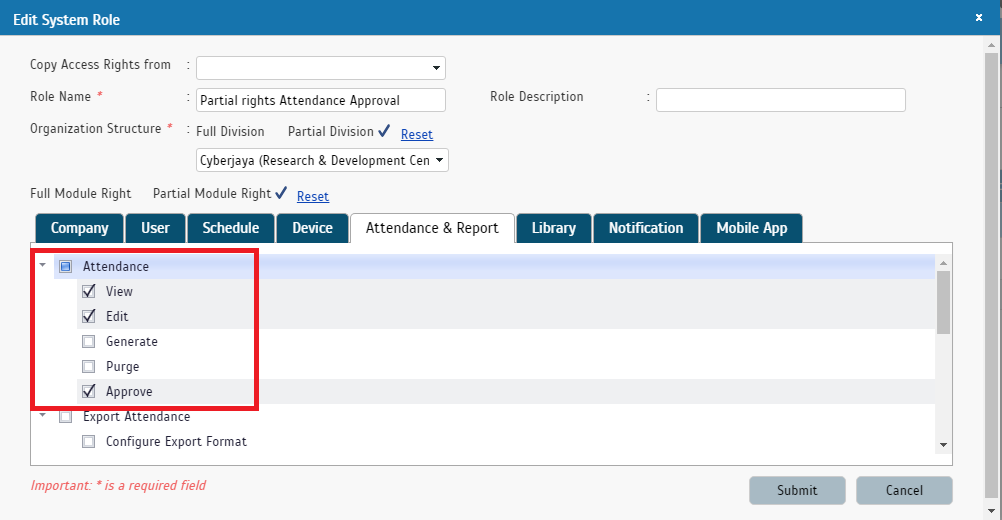
3. Next, configure the Approvers by reviewing whether Approve rights have been given to the relevant Admin roles. Go to User> Manage System Roles & Admin > System Role and select to Add/Edit. Note: There are 2 separate rights involved, approve in Web and approve in Mobile. i) Admin given right to “Approve” is allowed to approve attendance in Web
cid:image003.png@01D3C51C.35DE17A0

ii) Admin given right to “Approve” is allowed to approve attendance in Mobile app

cid:image004.png@01D3C51C.35DE17A0


B) How to Approve (Web)

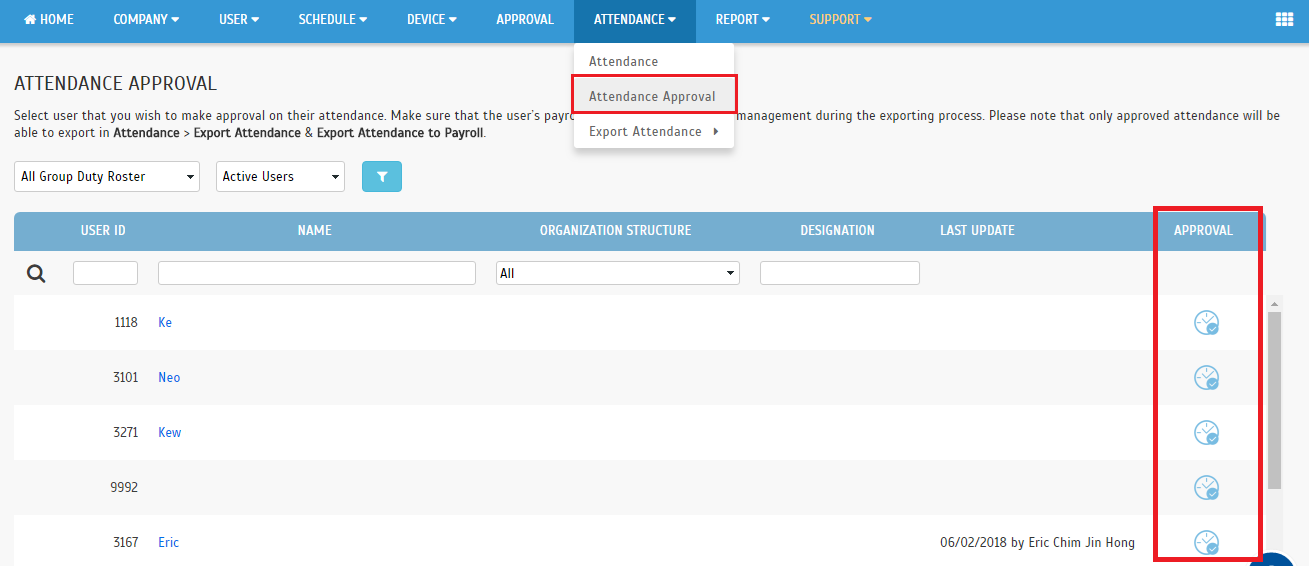
1. If you are the supervisor/manager charged with approving staff attendance, go to Attendance > Attendance Approval in the Menu (it’s hidden if this option is not enabled in the account).

cid:image002.png@01D3C51C.35DE17A0


2. At the User Listing, click on the Clock icon to view attendance details of the chosen user and to approve or unapprove attendance.

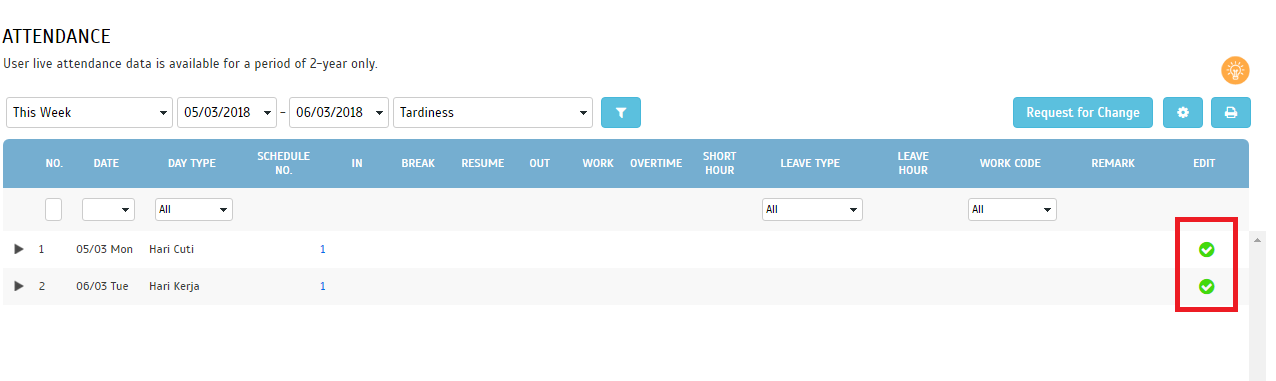
3. Next, the screen will display Attendance details. Use the filters to retrieve your relevant date range. Select/tick the relevant date(s) you wish to approve, then click “Approve”. Once a date is approved, a green tick will be shown in the Edit column. You can also repeat the steps to unapprove attendance for any date. i) “Approve” button will be shown when all attendance is unapproved

ii) “Unapprove” button will be shown when all attendance is approved


iii) Both buttons will be shown when attendance is a mix of approved and unapproved  


4. After you have approved any date, a success message pops up. There will be an option to notify the affected user. The same notification option also appears if you subsequently choose to unapprove attendance.


5. If you choose to notify user, system sends an Attendance Approval Email to the user.

i) Approved
cid:image009.png@01D3C51C.35DE17A0

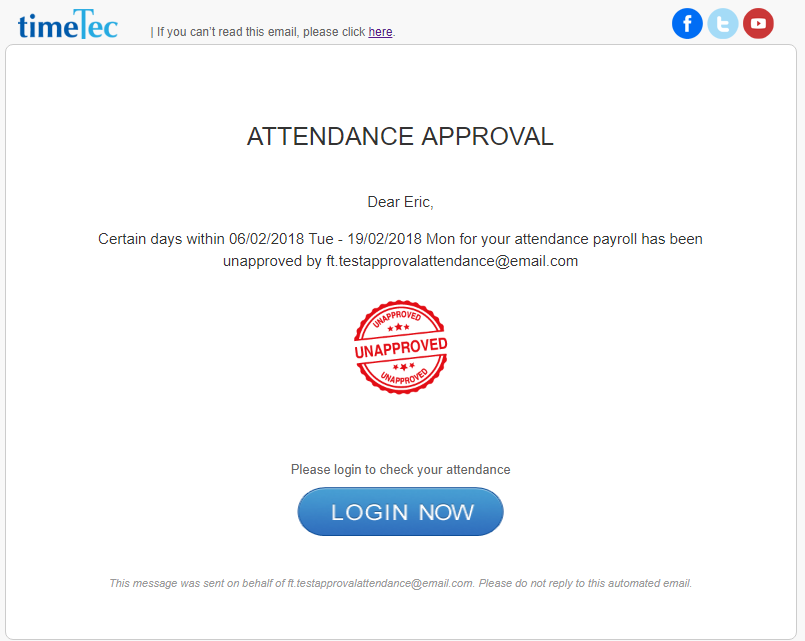
ii) Unapproved

cid:image011.png@01D3C51C.35DE17A0


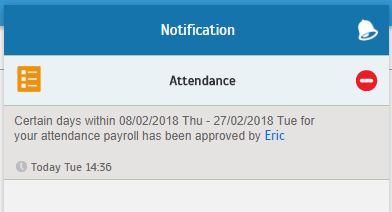
6. Additionally, if you choose to notify user, system also sends an Attendance Approval Notification to the user.

i) Approved 


ii) Unapproved

7. When user login, they will also be able to see if their attendance has been approved.
cid:image023.png@01D3C51C.35DE17A0

C) How to Approve (Mobile app) 1. Login to Admin account > Menu > Attendance > select the Approval icon (Clock) on the left of User Listing.


2. Next, at the chosen user’s Attendance Approval screen > filter for your appropriate Date Range > select “Approve” icon at upper-right corner. This will approve the whole date range (use the filter if choosing individual date). Once the dates are approved, a green vertical panel will be shown on the left. You can also repeat the steps to unapprove attendance for any date. i. Approve Icon


ii. Approved Attendance Details > May also choose to “Unapprove”


3. After you have approved any date, a success message pops up. There will be an option to notify the affected user. The same notification option also appears if you subsequently choose to unapprove attendance. i. Approve- Option to notify user

ii. Unapprove- Confirmation message & Notification option


4. If you choose to notify user, system sends email & mobile notification to the user.


D) Reports & Export Attendance Data after approval To recap what is mentioned above: 1) Only approved attendance can be exported through Export Attendance, Export Attendance to Payroll and Export Attendance Scheduler features.
2) Once approved, the data is not allowed to be updated by edit attendance, download data from terminal, update user’s group roster, update schedule setting, generate attendance manually and etc.
3) To update approved attendance, users must first proceed to unapprove the attendance.
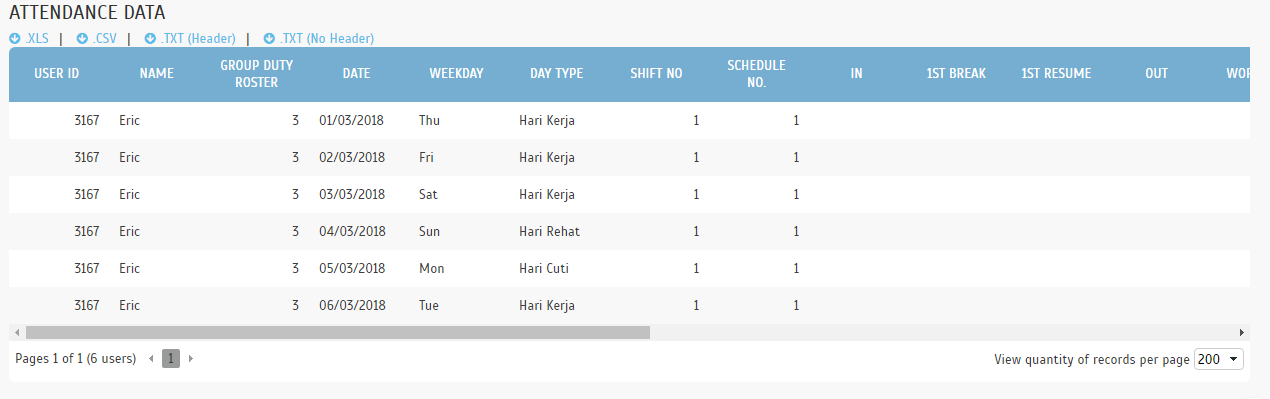
4) Electronic Time Card shows Approved/ Pending status. Only approved attendance will be able to be exported i. Export Attendance


ii) Export Detail
cid:image020.png@01D3C51C.35DE17A0

iii) Export Summary

cid:image021.png@01D3C51C.35DE17A0

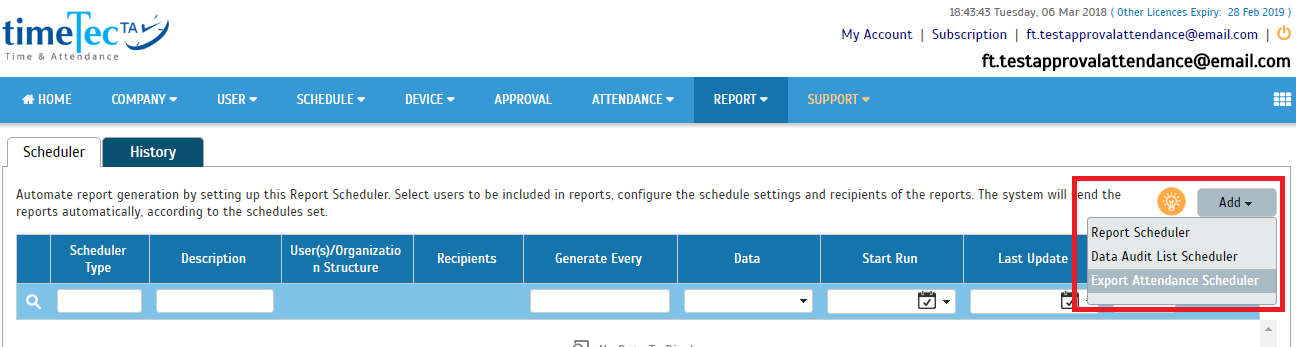
iv) Export Attendance Scheduler 

cid:image022.png@01D3C51C.35DE17A0

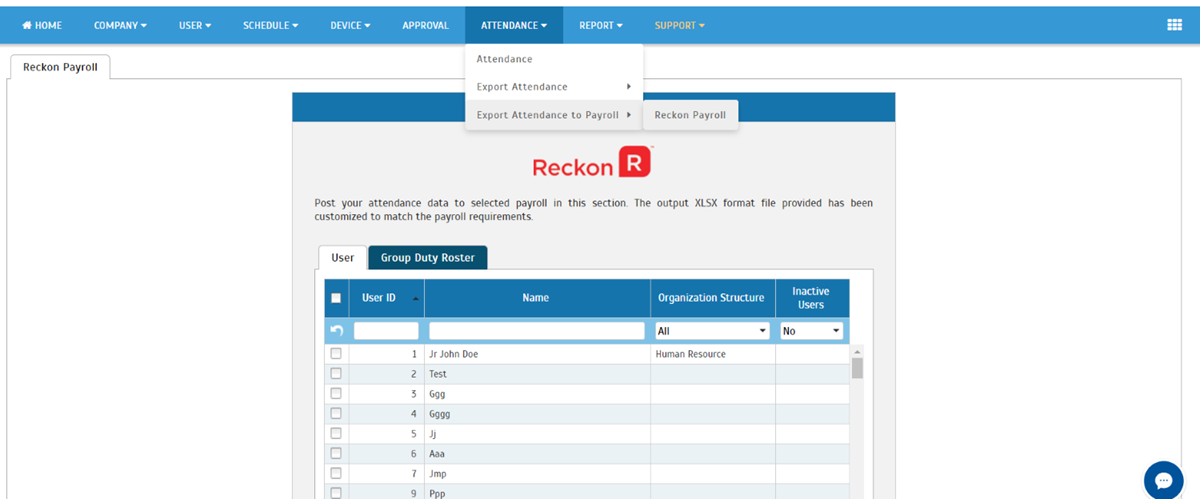
v) Export Attendance to Payroll 

cid:image001.png@01D3D0F0.0BA97620

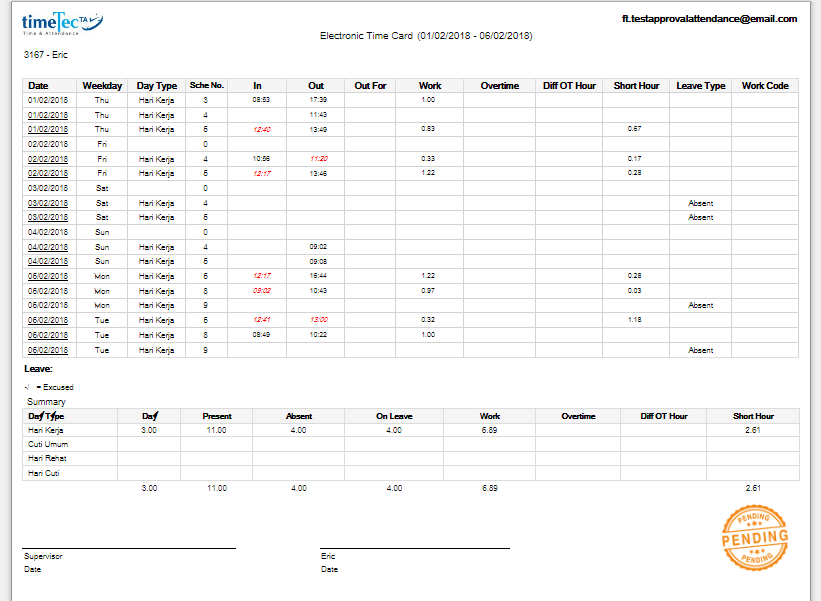
Report - Electronic Time Card

i) Approved

cid:image017.png@01D3C51C.35DE17A0

ii) Pending Approval

cid:image018.png@01D3C51C.35DE17A0


Anda Sekarang Seorang Agen Berdaftar. Apakah Langkah Seterusnya? Jom Mula.


1. Cara untuk mengaktifkan dan log masuk ke dalam akaun TimeTec

Anda akan menerima emel untuk mengaktifkan akaun anda sebaik sahaja pendaftaran anda sebagai Agen TimeTec diluluskan. Klik di butang atau pada pautan pengaktifan dan anda sedia untuk log masuk ke dalam akaun.


2. Terokai Akaun Agen TimeTec

Akaun Agen TimeTec akan membolehkan anda untuk melihat perjanjian perniagaan, dasar pembayaran, bahan pemasaran, menambah Pelanggan, menambah Agen (untuk akaun Agen bertaraf Pengedar sahaja), menambah pengurus akaun, dan melihat jualan dan komisen terkini. Berikut adalah beberapa foto yang akan memberikan gambaran keseluruhan mengenai akaun Agen dan Pengedar di TimeTec


3. Switch to Subscriber > My Account

Semua Agen TimeTec akan diberikan akaun percubaan apabila permohonan sebagai agen lulus. Di dalam akaun percubaan terdapat 2 bahagian: 
My Account dan Application (TimeTec TA / TimeeTec Patrol / TimeTec Leave, dan lain-lain). 

Fungsi My Account adalah untuk agen menguruskan lesen, pilihan pembaharuan secara automatik, memeriksa invois, menambah pentadbir bil, dan lain-lain.  Berikut adalah gambaran keseluruhan My Account.


4. Cuba Aplikasi TimeTec

Untuk akses aplikasi TimeTec dari My Account, gerakkan tetikus ke ikon senarai Aplikasi dan pilih aplikasi yang diingini. Anda juga boleh menyemak senarai Aplikasi TimeTec yang tersedia dan mengaktifkannya di Company> Company Account. Susun atur akaun anda dengan menggunakan Setup Wizard dan daftar di sesi Webinar untuk latihan lengkap.


5. Kemaskini Maklumat Syarikat

Maklumat Syarikat yang tepat sangat penting bagi Agen kerana semua pelanggan yang berpotensi akan kami lanjutkan kepada Age dari masa ke semasa. Pelanggan akan diberikan butiran syarikat seperti nama syarikat, alamat, nombor telefon dan nama orang yang berkaitan. Anda juga akan menerima emel notifikasi yang memberikan maklumat tentang pelanggan yang berpotensi. Maklumat atau butiran syarikat hanya boleh diubah pada paparan Aplikasi TimeTec, samada TimeTec Patrol atau TimeTec Leave.

Anda boleh ke pautan Aplikasi, pilih Company > Company Profile.


Sekarang akaun Agen TimeTec anda telah siap, and boleh mula menambah pelanggan dan mempromosikan Aplikasi TimeTec. Anda juga boleh menggunakan bahan-bahan pemasaran yang telah disediakan untuk menjalankan aktiviti promosi. Jika pelanggan anda telah mendaftar sebagai Agen, sila hubungi kami di info@timecloud.com untuk meletakkan pelanggan tersebut di bawah akaun anda.
Selamat maju jaya!

Untuk versi Bahasa Inggeris, klik sini.


Considering Flexible Working Arrangements?


In today's global HR landscape, due to major changes in the way people live and work, there are several concepts that have been gaining more traction. These include work-life balance, workforce diversity, digital HR and not forgetting one of the increasingly popular trends, Flexible Working Arrangements (FWA). According to a survey by the US Bureau of Labor Statistics, in the year 2016, 22% of all employed persons in America has worked at home from occasionally to full-time [1]. Furthermore, working from home is just one example from a wide range of FWAs that are currently offered to employees.

Types of Flexible Working Arrangements 
To get a clearer picture of what qualifies as FWA, firstly we can see that it falls into the following categories:

1. Flexible Time 
Flexible scheduling of the daily time/hours worked

  • Flexi Hours - e.g. Present for core hours from 10 am to 4 pm but flexible on the time and total hours as long as fulfilling 40 hours per week 
  • Staggered Time - e.g. Present for core hour but flexible on daily start and end time, to reach standard 8 hours daily (3 shifts starting at 7am/8am/9am).
  • Compressed Work Week - Option to work full-time in fewer days per week by increasing the total hours daily (e.g. 7am to 6pm from Mon- Thurs)
  • Shift Swaps - Employees can exchange their shifts with each other
  • Time off in lieu of Overtime (TOIL) - e.g. Every hour of overtime worked can be taken as one hour of time off from another work day

2. Flexible Amount of Hours
 Employees working less than the standard hours for full-time (e.g. 30 hours/week)

  • Part-time 
  • Job share - 2 employees cooperate and share one full-time role, both work part-time hours (e.g. A works Mon - Wed, B works Wed – Fri)  

3. Flexible Location 
Employees can work remotely from own home or elsewhere besides office

  •  Partial/ Full - e.g. 1 day Work from home per week for every staff or full-time telecommute

It’s apparent that FWAs are so broad that chances are your company may already be practicing some form of this. For comparison, in Asia, the top 5 FWAs in descending order are flexible working hours, flex-place, part-time employment, increased maternity/paternity leave and career breaks [2]. If you’d like to view some case studies for implementation in Malaysia, you can also visit flexWorkLife.my (Link)

Benefits & Impediments
Many organizations running such programs generally aim to reduce absenteeism and turnover, improve the image for recruitment and increase productivity. They believe that by providing such alternatives, it will help their employees optimize their daily schedule and balance work and family better.  However, there are also potential issues that will hold back these initiatives and the foremost is a lack of manager’s support and trust. Managers are usually wary of abuse and some are concerned about collaboration and communication issues.

Using TimeTec TA for FWAs
So for those who haven’t started, what’s the best path to offering FWA but also address the shortcomings? Most successful programs begin with extensive planning and consultation before formulating the policies. Besides planning for setbacks and mitigation right from the start, they also kick off with pilot projects to gauge effectiveness. Policies will also need to clearly set out expectations for the staff. Even with flexible time, you can still require workers to be present at core hours and not change schedules without notice. Elsewhere, to prevent communication delays, work from home policies can prescribe regular hours and staff must stay contactable.

Lastly, managers will need to maintain some control and for that, you can consider TimeTec TA, our cloud-based attendance management system. To cater for FWAs, we:

Provide Daily, Weekly, and Flexi Clocking Schedules to meet different clocking needs
The flexi schedule is especially suitable for flexible hours as employees are able to clock in/out at any time. Short hours is not tracked daily but you can set a rule and define the threshold for calculating weekly/monthly short hours and overtime (e.g. 40 hours/week). The system also has daily and weekly schedules that can be utilized for a compressed work week, staggered time, shift swaps, part-time, job shares and etc. By creating appropriate schedules and assigning your staff accordingly, you don’t have to worry about how to monitor if everyone’s working to your expectations.


Provide data for attendance, work hours, short hours, overtime and more with Attendance Sheet and Reports We not only provide all the relevant attendance data, our cloud-based system also comes with multi-user access. Managers can easily access and view real-time information of their subordinates’ clocking to ensure they are following your FWA guidelines. Likewise, staff can also check their own records. In addition, it’s useful for assessing whether your program has led to reduced absenteeism and tardiness.


Provide alternative clocking methods including Mobile GPS clocking 
Our system offers terminal, web and mobile clocking options for all users so if you’re planning to start a once weekly work from home program, this will be a nice compliment. When they’re working from home, employees can perform clocking on their mobile phone using GPS option so managers know they’re officially “present”. If you want to restrict their location to only home and prohibit elsewhere, you can do that with the GPS Geofence feature. For workers themselves, clocking marks a boundary that clearly separates work time and free time so they can juggle better.


Provide Overtime request and approval feature to justify actual OT records & TOIL 
If you set up overtime rules in the system, staff are able to request for overtime through web or mobile and their managers can then approve or reject their submission. This is crucial if you have a Time off in lieu of overtime (TOIL) arrangement. Managers need to monitor how much overtime is approved and done during busy periods and balance that with time off they can accommodate during the slower days. Otherwise, employees might not even be able to take their time off and your program doesn’t serve its purpose.


Those are just part of a long list of features you’ll find in our system. To find out more, why not start with a free trial at https://www.timetecta.com/free_trial or get in touch at info@timeteccloud.com.

References
1. Bureau of Labor Statistics, U.S. Department of Labor, The Economics Daily, ‘On days they worked, 22 percent of employed did some or all of their work at home in 2016’, https://www.bls.gov/opub/ted/2017/on-days-they-worked-22-percent-of-employed-did-some-or-all-of-their-work-at-home-in-2016.htm (visited March 14, 2018).
2. Hays Asia Salary Guide (Hays PLC, 2016)

Link
http://flexworklife.my/employers/flexibleworkarrangement


Keeping Mobile Employees In Check


The business world is changing rapidly; the world is getting smaller and employees are more mobile than before attending to everyday’s business’ requirements all over the world. Employers on the other hand need to cope with the change and adapt to make sure that the business stays relevant along with its workforce best practice and culture. Nonetheless, changing the business style and adopting a new business process must not be done hastily without  having an effective monitoring mechanism in place. Letting mobile employees scatter with excessive freedom can backfire when the end results do not meet the company’s objectives i.e disappointing sales figure, missing deadlines, lack of discipline and so on.

When a company wants to deploy more mobile workers in the business, it is recommended to seek for the right solution that can handle the mobility of these mobile employees.
• Cloud-based workforce time attendance solution should be on top of the list because with cloud, the solution can provide the employer with up-to-date information at all times, in real time and the data will be accessible through the web and app anytime of the day.
• Managing mobile employees also requires mobile application solution that is not only fit to the business’s requirements, but also flexible enough to attend to sudden change in plan.
• On top, the solution must cater a two-way communication between the office and the employee, between the superiors and their staff.

TimeTec TA has been designed to accommodate mobile/remote employees with various useful features such as GPS, Beacon and NFC clocking options through mobile App. For those mobile workers who are always on the go such as sales people, the GPS clocking can let the company knows where the meetings take place as the system records the geolocation on cloud to formalize their whereabouts and keep it for future references.


For those who stationed to work at different branches locally and abroad, on top of GPS, they can also use beacon and NFC at the branch they are visiting to clock in their attendance. During clocking the staff can brief the superior of their purpose of the meeting. For mobile workers that work from home, the same method applies but the employer can impose geofencing to curb excessive leniency on their flexible workers.

Geofence is a method of limiting the radius that an employee can clock from one single point. For example, if a staff is allowed to work from home, he or she can only clock in when she’s within 50 meter of her home. When she’s out of the radius, she would  have to retain permission from the supervisor before she can clock in.

Not only that business landscape is changing, the workforce now is being filled with young generations that are looking for dynamic workplace that is flexible enough to cater to their requirements. Explore the cloud solution and get ready to embrace the future workforce mobility with TimeTec TA.